Admin User Interface
Data
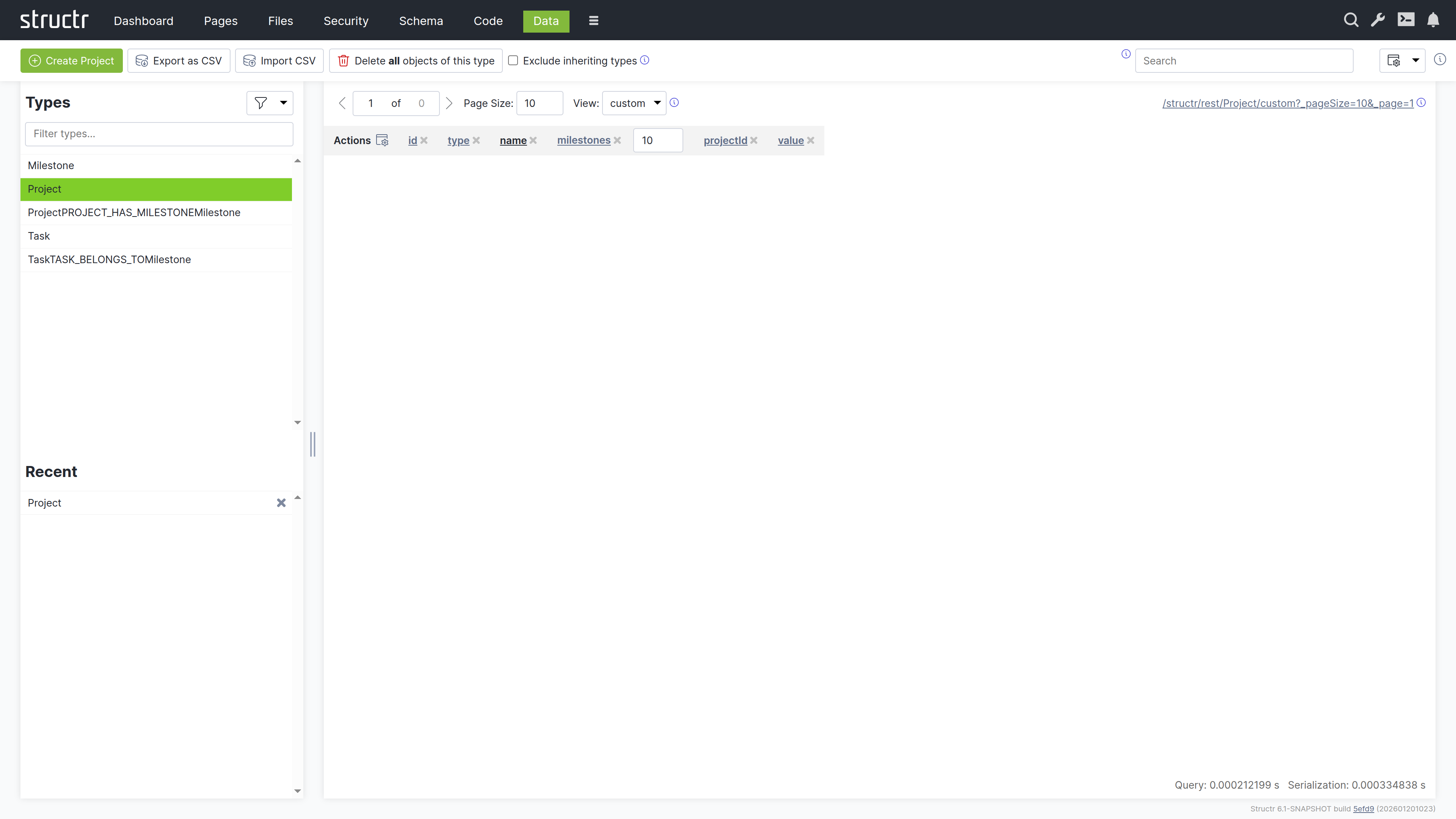
The Data area is a generic interface for viewing and editing all objects in your database. You can select a type from the list, view all its instances in a table, and edit values directly. This is useful for data inspection, quick fixes, bulk operations, and CSV import/export.
Browsing Your Data
The left sidebar displays all your custom types. Click on a type to view its instances in a paginated table on the right.
Type Filter
A filter button above the list lets you expand what’s shown. You can include:
- Custom Types (shown by default)
- Custom Relationship Types
- Built-In Relationship Types
- HTML Types
- Flow Types
- Process Types
- Other Types
Recently Used Types
Below the type list, recently accessed types are shown for quick navigation.
The Data Table
When you select a type, the main area displays all objects of that type in a table. Each row represents an object, and each column represents a property.
Pagination and Views
Above the table, the following controls are available:
- Pager controls for navigating through pages
- A page size input to set how many objects appear per page
- A view dropdown to select which properties appear as columns
A gear icon in the table header opens the “Configure columns for type X” dialog, where you hide individual attributes of the selected view. The id and type columns are always shown first.
Editing Values
System properties (like id and type) are read-only, but you can edit other properties directly in the table cells by clicking on them.
Navigating Related Objects
Properties that reference other objects are clickable. Click on one to open a dialog showing the related object, where you can view and edit it. From that dialog, you can navigate further to other related objects, allowing you to traverse your entire data graph without leaving the Data area.
Creating Relationships
For relationship properties, a plus button appears in the table cell. Click it to open a search dialog limited to the target type. Select an object to create the relationship. The dialog respects the cardinality defined in the schema – for one-to-one or many-to-one relationships, selecting a new object replaces the existing one.
Creating and Deleting Objects
Create Button
The Create button in the header creates a new object of the currently selected type. The button label changes to reflect the type currently being viewed. Hold Shift while clicking to open the Create Node dialog instead, where you fill in property values before the object is created.
Delete All
The “Delete all objects of this type” button does exactly what it says – use it with caution. The checkbox “Exclude inheriting types” next to it affects both the object list and the delete function: when checked, only objects of exactly the selected type are listed and deleted; when unchecked, objects of all inheriting types are included as well.
Import and Export
Export as CSV
Downloads the current table view as a CSV file.
Import CSV
Opens the Simple CSV Import dialog. See the Importing Data chapter for details on the import process and field mapping.
Search
The search box in the header searches across your entire database, not just the currently selected type. Results are grouped by type, making it easy to find objects regardless of their location. Click the small “x” at the end of the search field to clear the search and return to the type-based view.
The REST Endpoint Link
In the top right corner of the content area, a link to the REST endpoint for the current type is displayed.
HTML REST View
When you access a REST URL with a browser, Structr detects the text/html content type and returns a formatted HTML page instead of raw JSON. Objects appear with collapsible JSON structures that you can expand and navigate. A status bar at the top lets you switch between the available views for the type.
This feature makes it easy to explore your data and debug API responses directly in the browser, without needing external tools like Postman or curl.